A key feature of OME-Zarr is that data can be stored on cloud object storage, such as AWS S3, Google Cloud Storage, or Azure Blob Storage. However, institutions can set up their own S3-compatible infrastructures so to not rely on commercial providers. In this tutorial, we will use the S3 playground provided by the minio project.
Link: https://
Credentials for this playground are public:
- Access Key (aka user name):
Q3AM3UQ867SPQQA43P2F - Secret Key (aka password):
zuf+tfteSlswRu7BJ86wekitnifILbZam1KYY3TG
Optional: Important concepts about S3
Buckets: S3 spaces are typically organized in buckets.
- A bucket is a top-level container for objects (files).
- Bucket names must be globally unique across all S3 users.
- Bucket names must follow specific naming conventions (e.g., no uppercase letters, no underscores, etc.).
- Buckets can be created, listed, and deleted using S3-compatible tools or libraries
Flattened namespace: Unlike traditional file systems, S3 uses a flat directory structure.
This means that there are no actual folders or directories; instead, the concept of folders is simulated using object key prefixes.
For example, an object with the key folder1/folder2/file.txt is stored in a bucket, but there are no actual folder1 or folder2 directories.
Access Control: S3 provides fine-grained access control mechanisms to manage permissions for buckets and objects.
Generally, data on S3 can be accessed using an Access Key and a Secret Key.
Depending on the host institution, the endpoint URL can be specified to point to a S3-compatible service that is not part of AWS.
from minio import Minio
import os
import tqdm
Creating a bucket
Let’s connect to the minio playground, create a bucket and upload some sample data
access_key = 'Q3AM3UQ867SPQQA43P2F'
secret_key = 'zuf+tfteSlswRu7BJ86wekitnifILbZam1KYY3TG'
endpoint = 'play.min.io'
client = Minio(endpoint=endpoint, access_key=access_key, secret_key=secret_key, secure=True)We can see that people have already created some buckets in this playground:
# List buckets
buckets = client.list_buckets()
buckets
# create a new bucket. Spoiler "test-bucket" already exists.
bucket_name = '32098230xm8302ysd'
if not client.bucket_exists(bucket_name):
client.make_bucket(bucket_name)Alternatively, you can log in to the web interface at https://
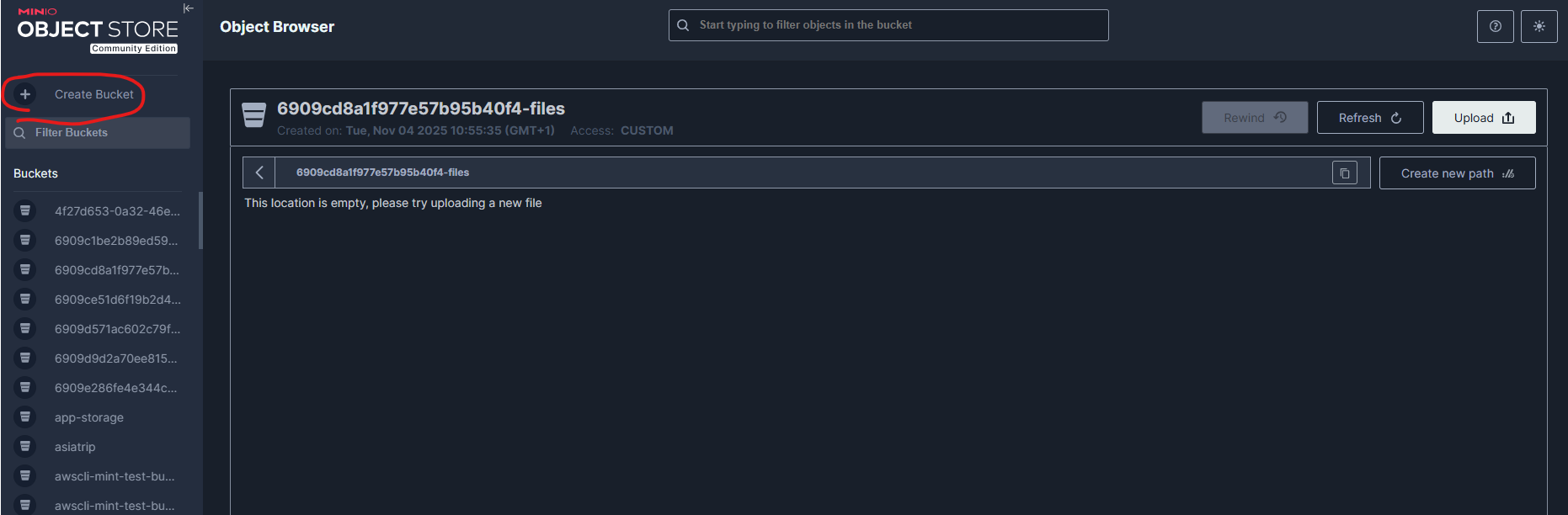
Once your bucket has been created, create a small test file to upload:
test_file_path = "testfile.txt"
with open(test_file_path, "w") as f:
f.write("This is a test file for MinIO upload.\n")Exercise
Use the fput_object method of the client object to upload the test.txt file to your bucket.
client.fput_object?Exercise
Use the fget_object method of the client object to download the test.txt file from your bucket and print its contents.
client.fget_object?Upload image data
Now let’s upload our ome-zarr from the previous notebook to an S3 bucket. The Minio playground does not allow for very large uploads, so we need to upload elsewhere. We can still use the minio client for this, though!
endpoint = 's3.zih.tu-dresden.de'
access_key = 'WFCEK72DCU6I0W7XFKRF'
secret_key = '4wf8MNj7PEc8vDingDEcDPYh3hfX9NLA34QZJHtP'

client = Minio(endpoint=endpoint, access_key=access_key, secret_key=secret_key, secure=True)

bucket_name = '2309xx23ds'
if not client.bucket_exists(bucket_name):
    client.make_bucket(bucket_name)
os.chdir(r'C:\Users\johan\Desktop\local_data\BiaPoL\autoSCAPE\20250721')
ome_zarr_path = r'20250721_selectedPos_1_Focus_Plane_order2_1.ome.zarr'
file_count = sum(len(files) for _, _, files in os.walk(ome_zarr_path)) # get total file count
with tqdm.tqdm(total=file_count) as pbar: # Do tqdm this way
for root, subdirs, files in os.walk(ome_zarr_path):
for file in files:
path = os.path.join(root, file)
s3_object_name = path.replace("\\", "/") # For Unix compatibility
client.fput_object(bucket_name, s3_object_name, path)
pbar.update(1)100%|██████████| 755/755 [2:22:01<00:00, 11.29s/it]
Minio client from CLI
Obviously, that’s fairly slow. You can improve the upload performance a fair bit my using the minio client (mc) from the command line. Instructions can be found here:
As a first step, configure the minio client with the credentials to a working s3 storage:
mc alias set halfway_i2k https://s3.zih.tu-dresden.de WFCEK72DCU6I0W7XFKRF 4wf8MNj7PEc8vDingDEcDPYh3hfX9NLA34QZJHtP --insecure --api S3v4
mc alias ls halfway_i2k
Verify that the configuration worked. You should see something like this in the output:
halfway_i2k
  URL       : https://s3.zih.tu-dresden.de
  AccessKey : WFCEK72DCU6I0W7XFKRF
  SecretKey : 4wf8MNj7PEc8vDingDEcDPYh3hfX9NLA34QZJHtP
  API       : S3v4
  Path      : auto
  Src       : C:\Users\johan\mc\config.json
Then navigate to the folder with the ome-zarr image you’d want to upload and run the following command:
mc mirror --overwrite .\cells3d.ome.zarr\ halfway_i2k/<your-bucket-name>/Next, let’s interact with the S3 data from different viewers. On to the next notebook!